

Obsidian comes with a selection of so-called core plug-ins, which already offer interesting and important functions. These can be activated in the settings. The makers of Obsidian could have activated these additional functions in principle, but Obsidian should be as customised as you want it to be. Any superfluous function should be avoided as it could get in the way of the perfect workflow.
In addition to the core plugins, the community plugins can be activated and then you have over 1,400 plugins available at a stroke, which enable almost every function and connection to other systems.
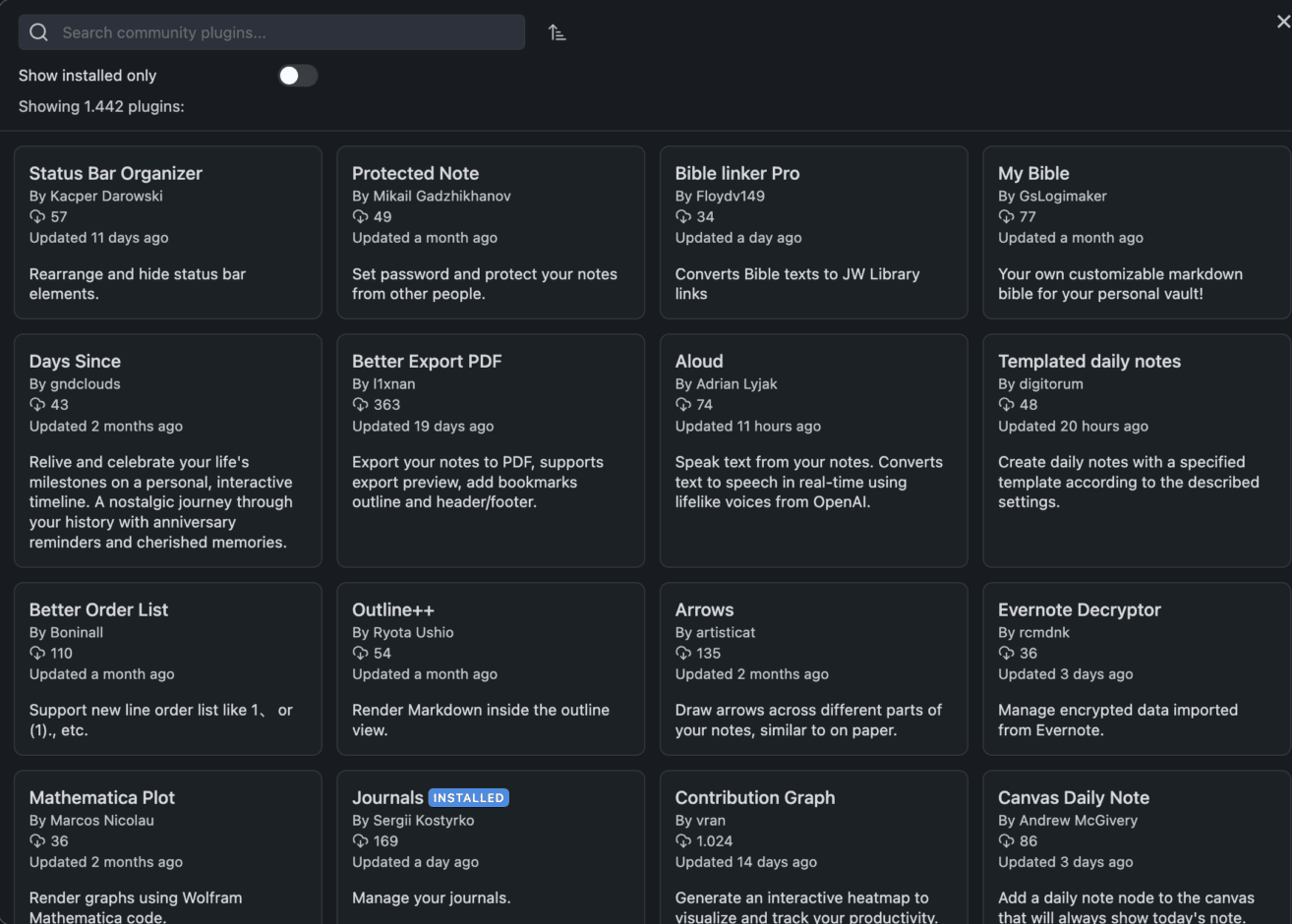
Under Browse , you can search through the community plugins and sort them by number of downloads, release or update date and alphabetically.
If you click on a plugin in the selection, you can find out details about its function and use. Now you (or at least I) tend to overload Obsidian with plugins, as almost all of them sound interesting and useful. However, I would recommend that you first use Obsidian without any community plugins and familiarise yourself with the basic functions. This also includes a basic understanding of Markdown and its basic syntax.
However, there are some plugins that can now be safely described as “standard equipment” for Obsidian, as their functions are so useful that they take Obsidian to a whole new level.
I would like to introduce you to these plugins here, as I believe that they belong in every Obsidian installation.
Calendar
The Calendar plugin is hidden in the right sidebar of Obsidian after installation and allows very quick access to the daily notes of a particular day.
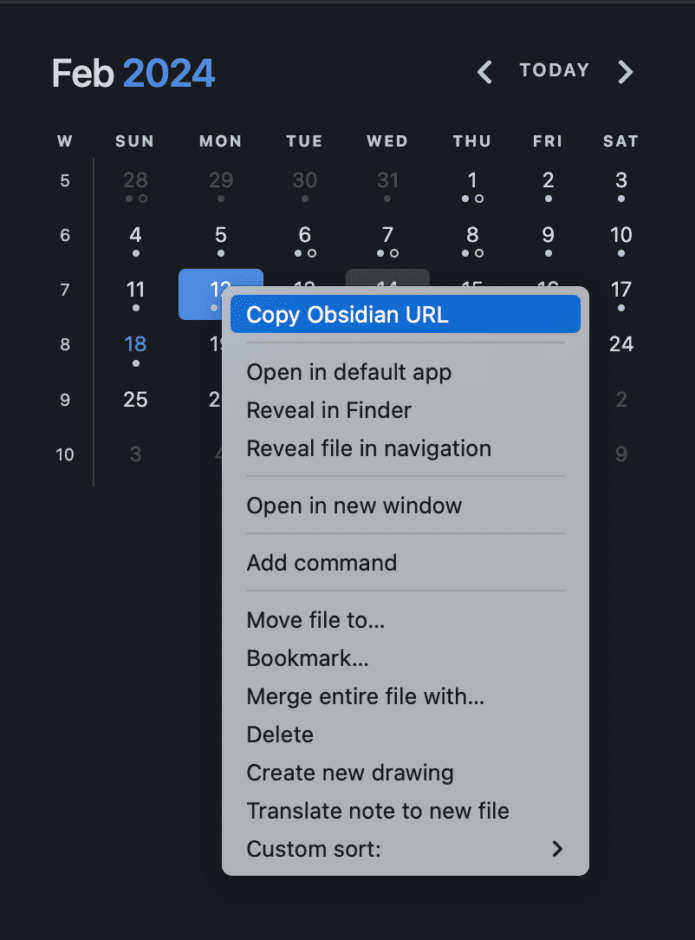
In the settings of the plugin, you can also activate the display of the calendar weeks. If you then click on the corresponding week in the calendar, Obsidian offers to create a new note for this week.
Many other functions are available by right-clicking on a calendar day.
ReaditLater
ReadItLater creates a new note for links from the clipboard. The plugin is not just limited to the link, but can also embed content completely. For example, if you have a link to a YouTube video, tweet, Vimeo video, Mastodon or TikTok content, the content or, in the case of a video, the player is embedded in the note.
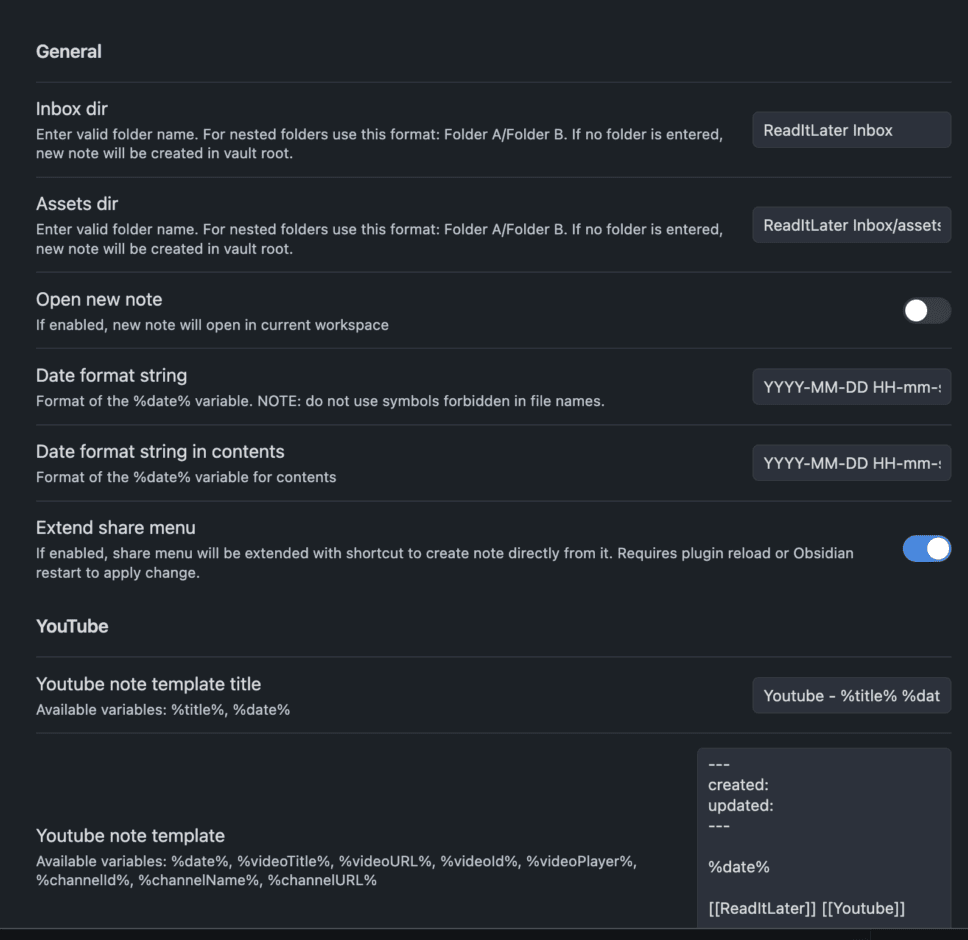
I have placed ReadItLater on the shortcut CTRL Shift L and thus a very short way to quickly bring content into Obsidian. With different variables, you can determine which metadata should be created automatically and what the note should look like.
Omnisearch
No matter how well you organise and sort your notes: Once your Obsidian vault reaches a certain size, you also need a powerful search function. Omnisearch finds content within notes, but also text in images or PDFs.
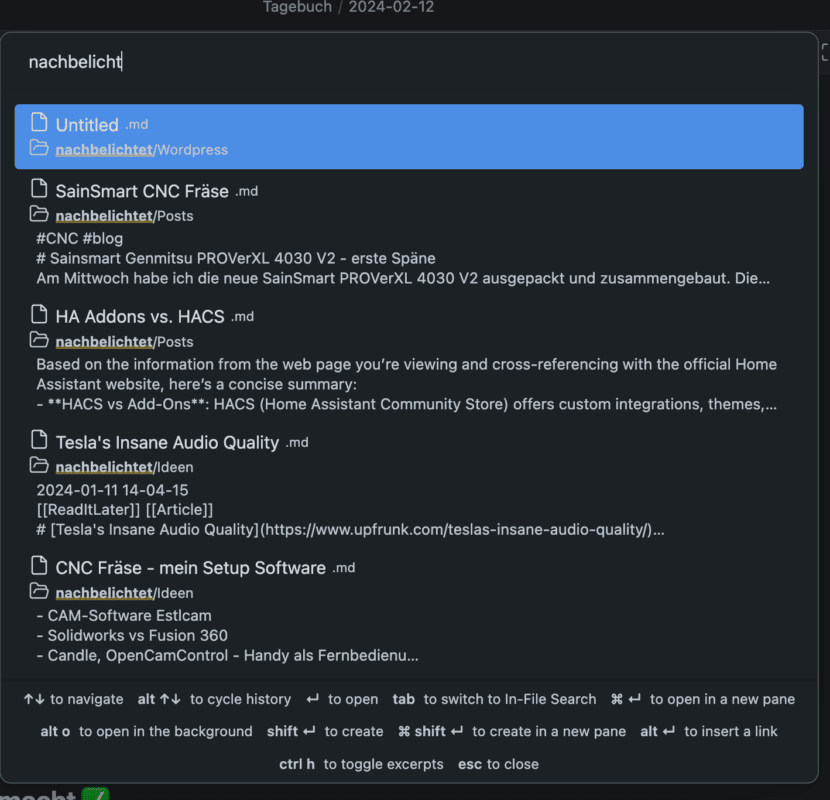
Here, too, it is advisable to assign the function to a key combination so that you always have it quickly to hand – even if there is an icon for it in the left-hand toolbar.
Advanced Tables
I love Markdown because it allows you to write quickly and without distraction. However, creating tables with Markdown is no fun at all. This is where the Advanded Tables plugin comes into play. You simply start with a pipe | and use it to create the table header. Use the Tab key to generate additional columns.
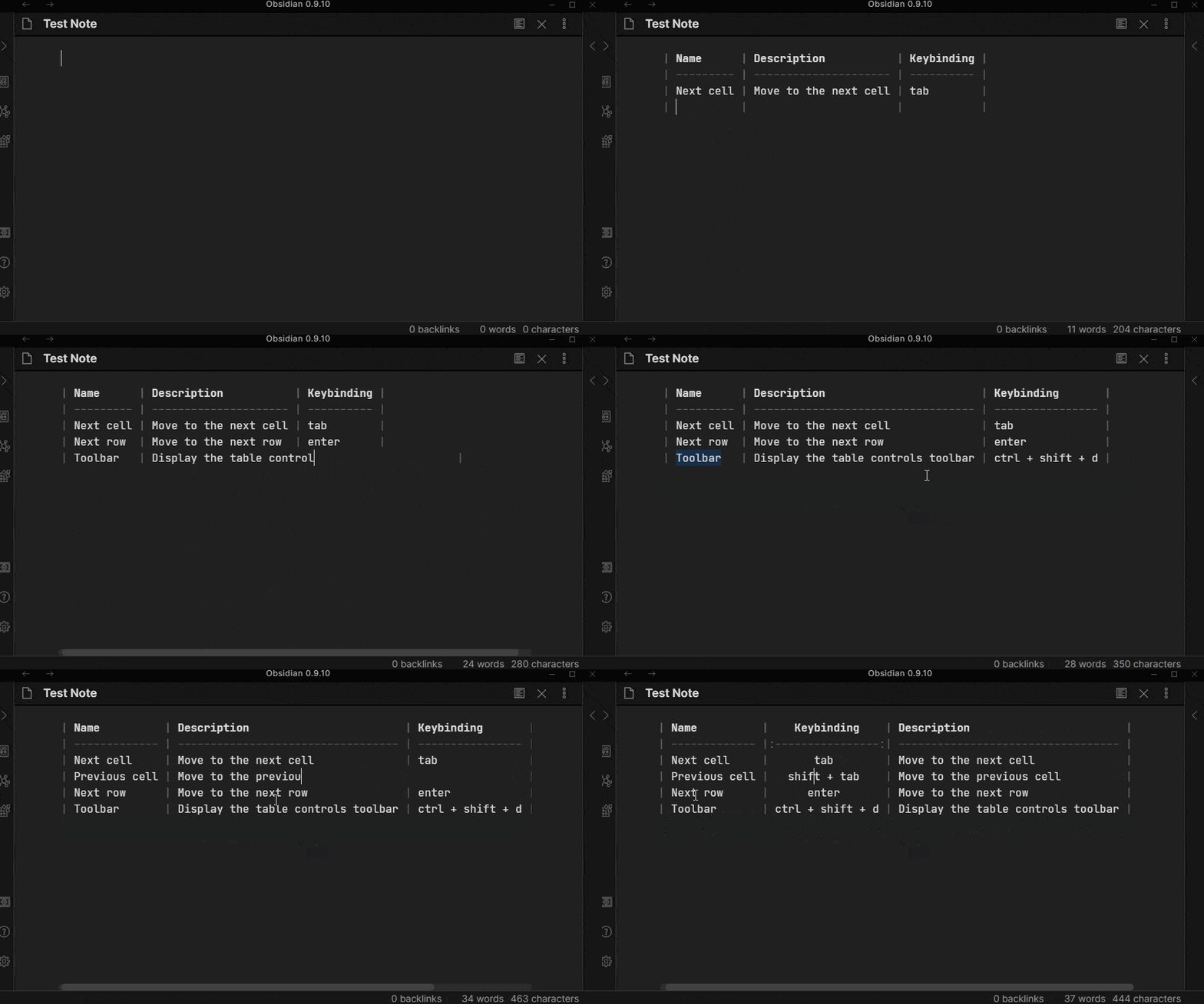
The real highlight of Advanced Tables, however, is that you can even use formulas to quickly calculate a sum, for example. You can navigate through Advanced Tables using the same shortcut keys as in MS Excel.
Editing toolbar
Not everyone is a friend of Markdown or is just learning how to use it. However, to be able to format content quickly and easily, you can install the Editing Toolbar plugin.
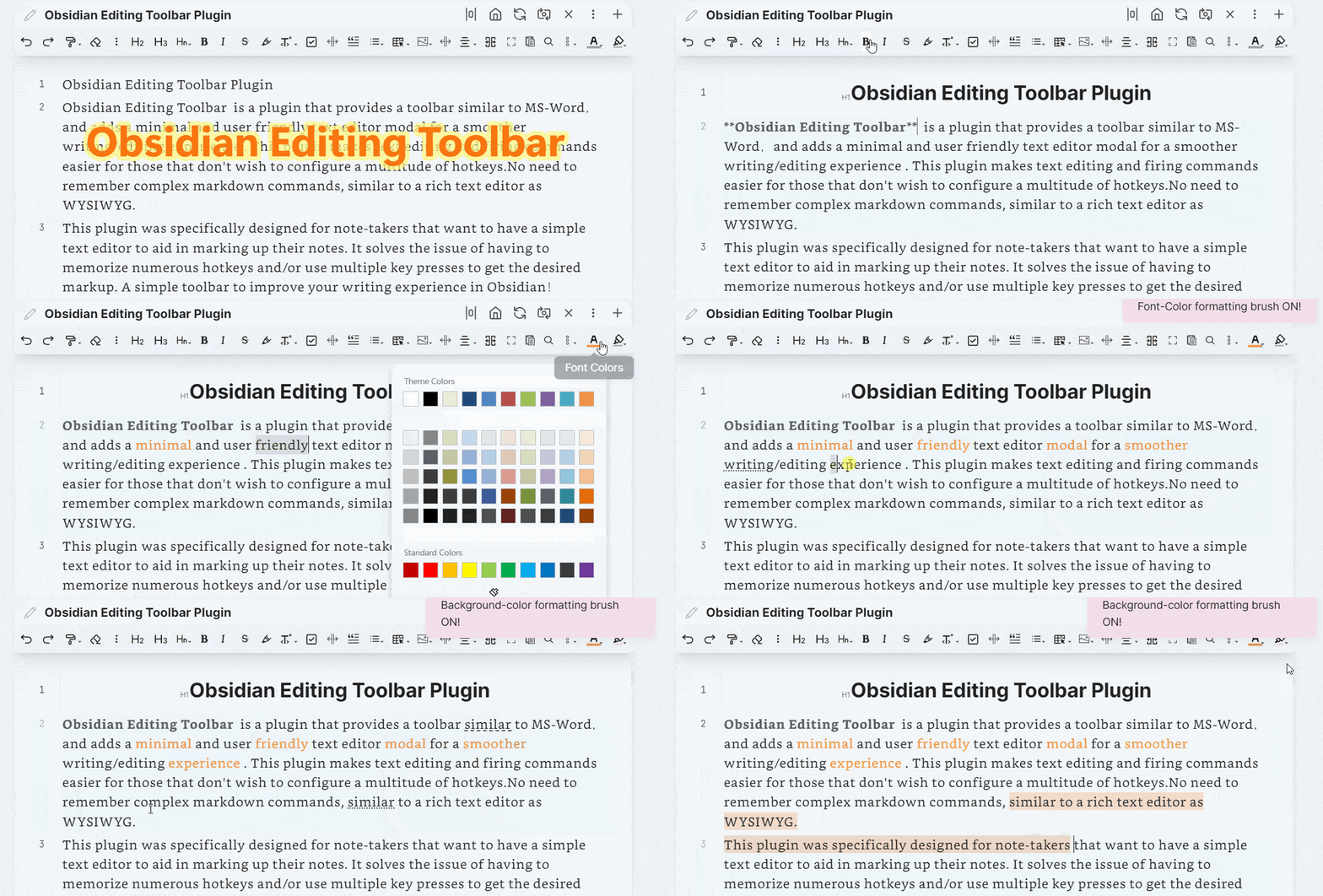
It offers a convenient toolbar with formatting commands familiar from any word processor. The plugin also offers a simple table generator, emojis, but also individually configurable functions and buttons to insert predefined content blocks, for example.
Janitor
If you use Obsidian frequently and for a long time, rubbish such as orphaned or empty notes and images will accumulate. Janitor can also be used to search for very large files and files that are not referenced anywhere. Janitor can also take into account an Expire attribute, which can be automatically inserted into every note with Frontmatter. If the “expiry date” of the note is reached, Janitor suggests it for deletion,
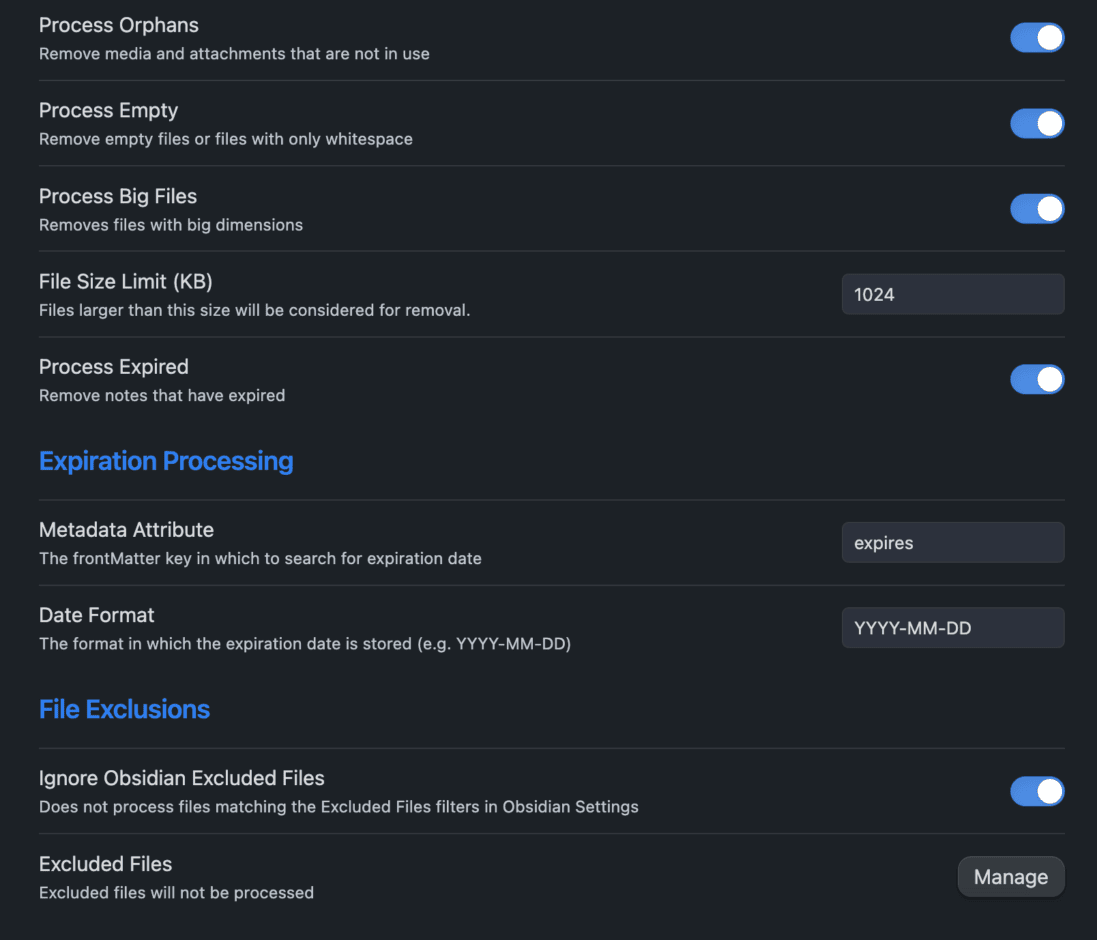
This keeps Obsidian clean and organised. As a precaution, you should make a backup of the vault before a major clean-up operation. As this is only a folder structure, it is very easy with Obsidian and in case of doubt a manual copy to another directory is sufficient.
Plugin Update Tracker
Once you have installed some community plugins, you will of course need to keep them up to date. The Plugin Update Tracker helps with this. This shows in the status bar of Obsidian whether and for how many plugins updates are available.
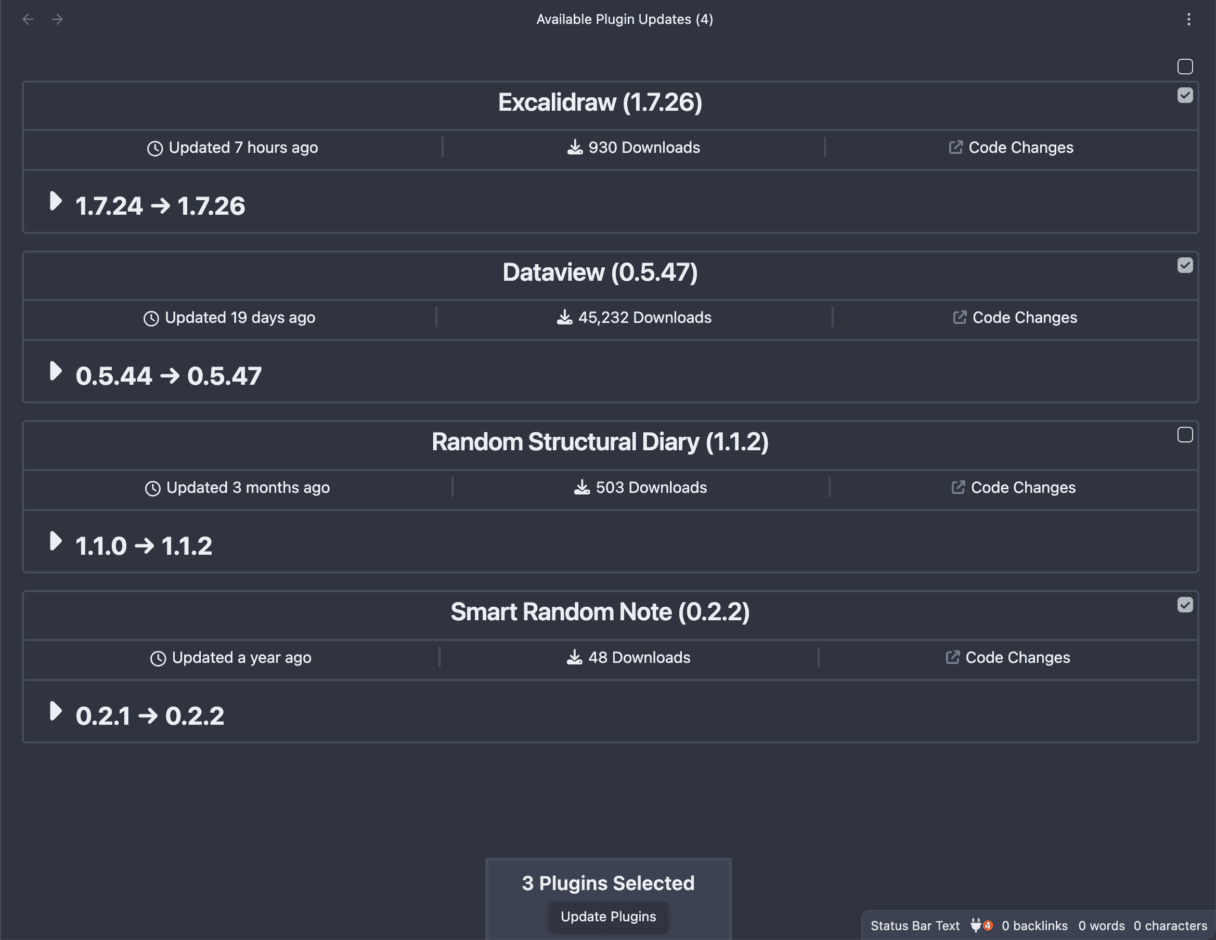
Clicking on this display opens the updater and provides a detailed overview of the plugins for which updates are available. You can also view the changelog first and then either update all plugins at once or only selected plugins.
Excalidraw
Excalidraw is more than just a plugin. It is a complete application in Obsidian. Even though Obsidian has a similar functionality in the standard version with Canvas, which is getting better and better, Excalidraw is still unbeaten.
From sketches and handwritten notes to flowcharts, mind maps, whiteboards, mood boards and much more – Excalidraw has it all. Even mockups for app and web development are possible. So it doesn’t always have to be Figma.


- A4-Dokumentenscanner mit automatischer Zuführung für schnelles und unkompliziertes Scannen; Dokumenteneinzug für 50 Blatt
- Paper Protection – Technologie: Originaldokumente schützen und sicherstellen, dass jede Seite gescannt wird

- Nehmen Sie alles auf, was Sie hören, sagen oder schreiben, und verknüpfen Sie Ihre Audioaufzeichnungen mit Ihren Notizen.
- Spielen Sie Audioaufzeichnungen direkt vom Papier ab, indem Sie auf Ihre Notizen tippen

- Erhalten Sie eine NVMe-Solid-State-Performance mit einer Lesegeschwindigkeit von 1.050 MB/s und einer Schreibgeschwindigkeit von 1.000 MB/s in einem tragbaren Laufwerk mit hoher Kapazität, das perfekt geeignet ist, um faszinierende Inhalte zu erstellen oder umwerfende Aufnahmen zu machen.
- Profitieren Sie vom Aufprallschutz von bis zu 3 Metern Höhe und Wasser- und Staubbeständigkeit gemäß IP65. Dieses robuste Laufwerk hält einiges aus und eignet sich ideal für raue Umgebungen.
Omnivore
The Omnivore plugin requires a free Omnivore account. Omnivore is a bookmark management system similar to Pocket or Raindrop.io
For me, Omnivore has replaced exactly these tools, because it not only saves the URL of the page, but also its content, so that it is still available even if the page no longer exists. Omnivore can also save PDFs in a searchable format and is also a read-it-later tool. There is a nice browser extension for Omnivore, which allows you to add notes or highlight text as you capture the page.
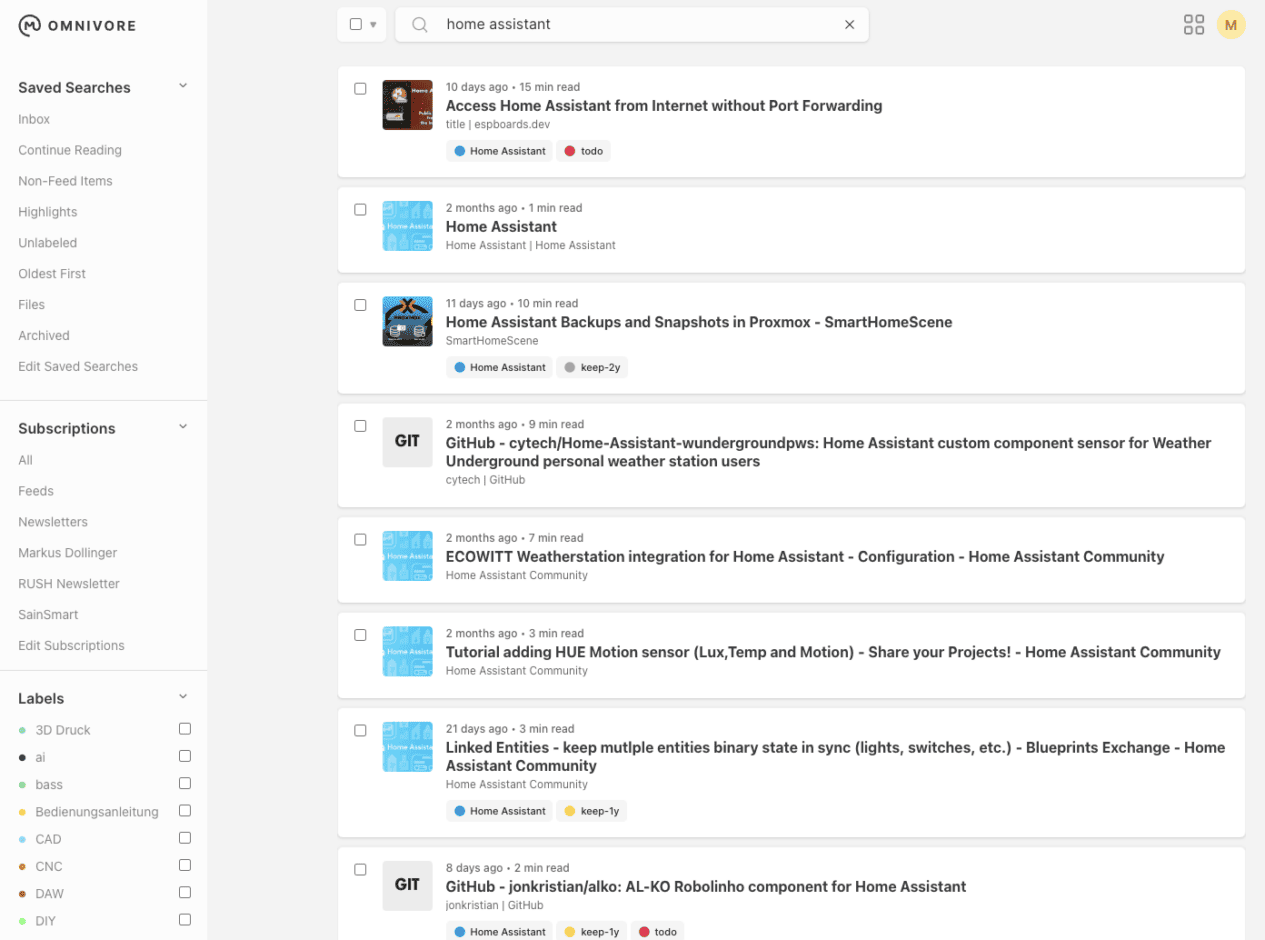
With the Omnivore plugin for Obsidian, you can retrieve content from Omnivore directly as an Obsidian note via its API. This can be done either manually or at configurable time intervals.

You can use filters to set which Omnivore content should be synchronised. Variables can also be used here to define what the notes should look like and where the Omnivore content should be saved.
Dataview
Dataview is probably the most powerful, but also the most complex Obsidian plugin. I consider it so essential that I think it belongs in the core.
Dataview can create lists and tables from all kinds of properties and frontmatter data. Dataview can also be used to visualise data as diagrams and list all ToDos in a category and/or time period – across the entire Vault.
For example, I use Dataview to list all the notes that I have created or edited that day in my daily journal. All Omnivore and ReadItLater content from that day is also displayed with Dataview.
It is important to know that Dataview can only display content, but not edit it. The primary formats for the Dataview display are
- Tables
- Lists
- Tasks
- Calendars
A syntax that is reminiscent of SQL helps with more complex queries. So anyone who has worked with SQL databases before will find it a little easier to find their way around. With Dataview, this is called DQL (Dataview Query Language).
For example, to display all notes with a specific tag as a list, the following script is sufficient:
```dataviewLIST
FROM #MyTagname```Code language: JavaScript (javascript)
To find all files that were created or edited on the same day that the note containing the dataview was created and do NOT contain the tag #omnivore, I use the following dataview in my daily journal template:
```dataview
TABLE file.folder AS directory
FROM "" and -#Omnivore
WHERE file.day = date(this.file.cday) OR file.cday = date(this.file.cday) OR file.cday = date(this.file.mday) OR file.mday = date(this.file.cday) AND file.name !=(this.file.name)
SORT file.folder ASC, file.name ASC
```Code language: JavaScript (javascript)
The output then looks like this, for example:
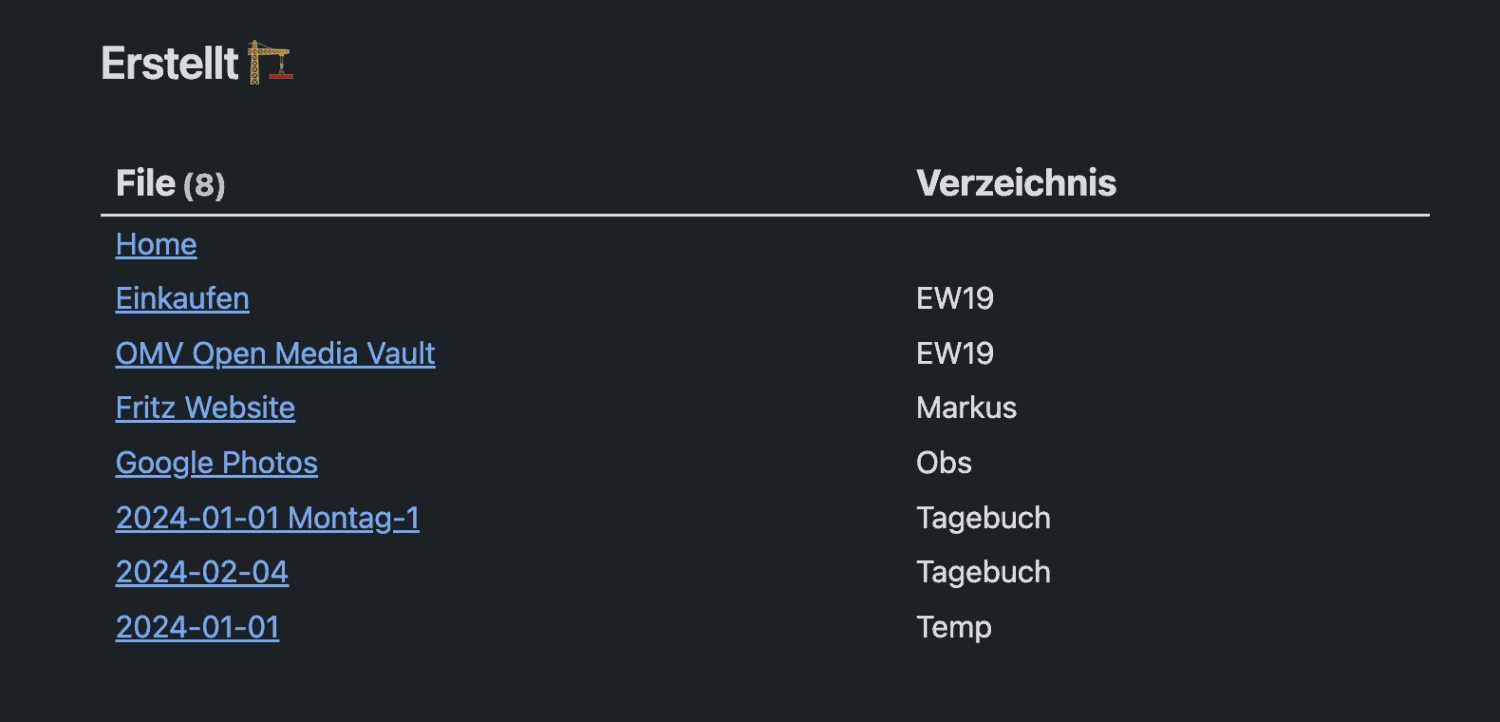
The output of the Dataview
Dataview has a steeper learning curve and I often had to look at the exceptionally good documentation and try out even more. The Dataview sample vault, which you can download from Github, helped me with this. It contains sample data and a large selection of different Dataview codes that help you get started and that you can play around with yourself.
Once you have understood the application and the use of Dataviews, you will know why you no longer want to do without Obsidian … or can.
Which Obsidian plugins do you use or which can you recommend?
Letzte Aktualisierung am 2026-06-11 / Affiliate Links / Bilder von der Amazon Product Advertising API



Leave a Reply