
Notes are essential for me. I read a lot, have lots of ideas and they need to be recorded in a sensible and comprehensible way. I’m also not a fan of paper and like to have everything digitised and available at the touch of a button.
For many years, Evernote was my choice when it came to filing notes, invoices, operating instructions and bookmarks. Over the years, however, there have been more and more problems and with the sale to Bending Spoons, Evernote is likely to play only a minor role in the future – if not disappear completely from the screen.
In the meantime, I have tried various alternatives such as Nimbus Note, Amplenote or Microsoft’s OneNote. However, none of them have really satisfied me so far. It started with poor OCR, unreliable synchronisation (even with loss of content), lousy mobile apps and more.
Obsidian, Omnivore and Paperless NGX
I finally came to the realisation that my requirements are very high and that no application can and will fulfil all my wishes. That’s why I took a completely new approach to notetaking, document management and bookmark management.
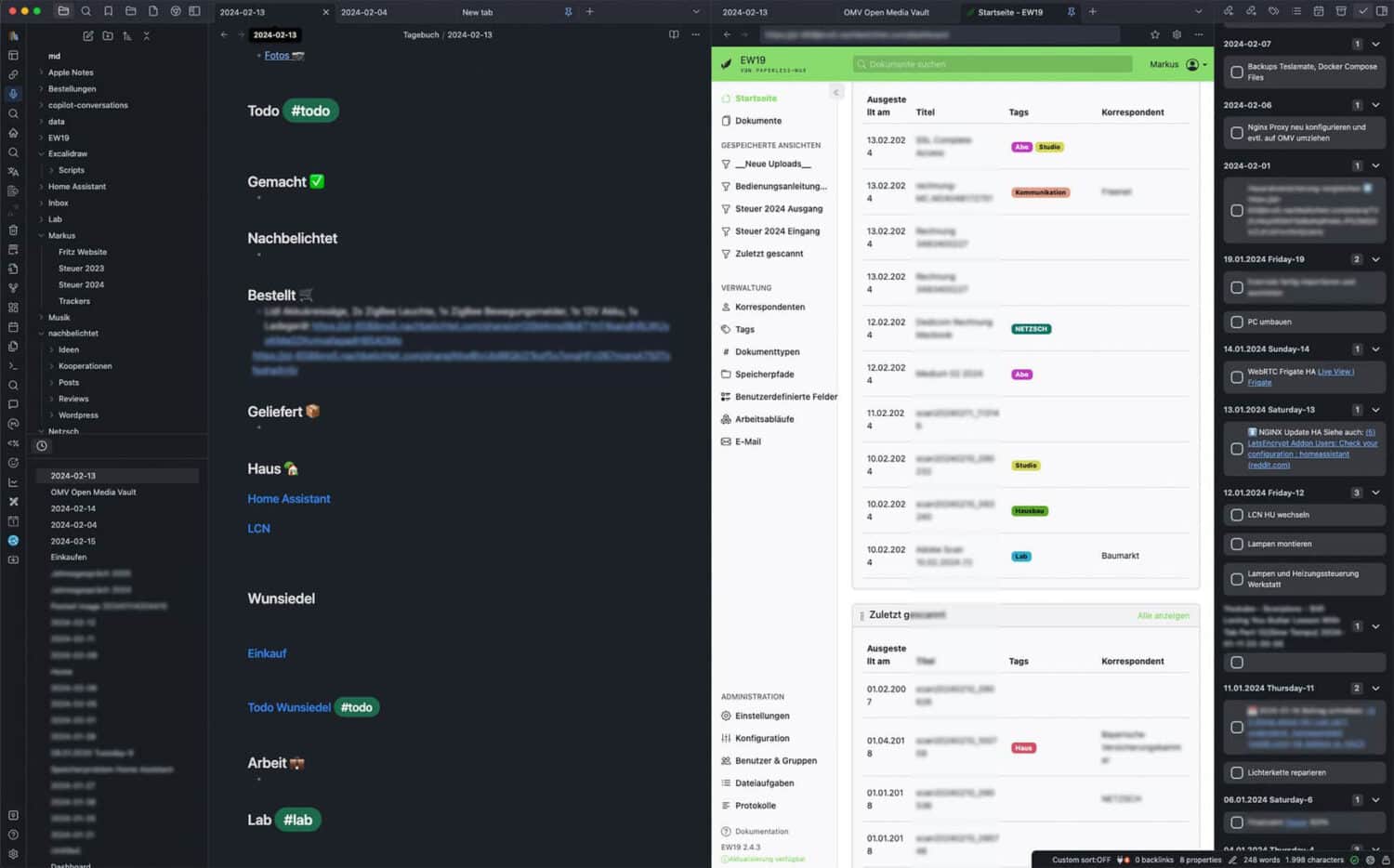
Of course, I always had alternatives such as Joplin or Obsidian on my radar. However, I never bothered to really get to grips with Obsidian. In the meantime, Obsidian has almost become an obsession. It plays a central role in my daily routine and has become my second brain. PKM (Personal Knowledge Management) probably doesn’t work as well with any other tool as it does with Obsidian.
Importing from Evernote works well via the importer plugin. However, I also took the changeover as an opportunity to do a thorough clean-up. The importer can import from the following note apps:
- Notion
- Evernote
- Apple Note
- Microsoft OneNote
- Google Keep
- Bear
- Roam
- HTML files
While my notes in Evernote (or the other representatives) were always content with a few tags but no real connection, everything is connected in Obsidian.
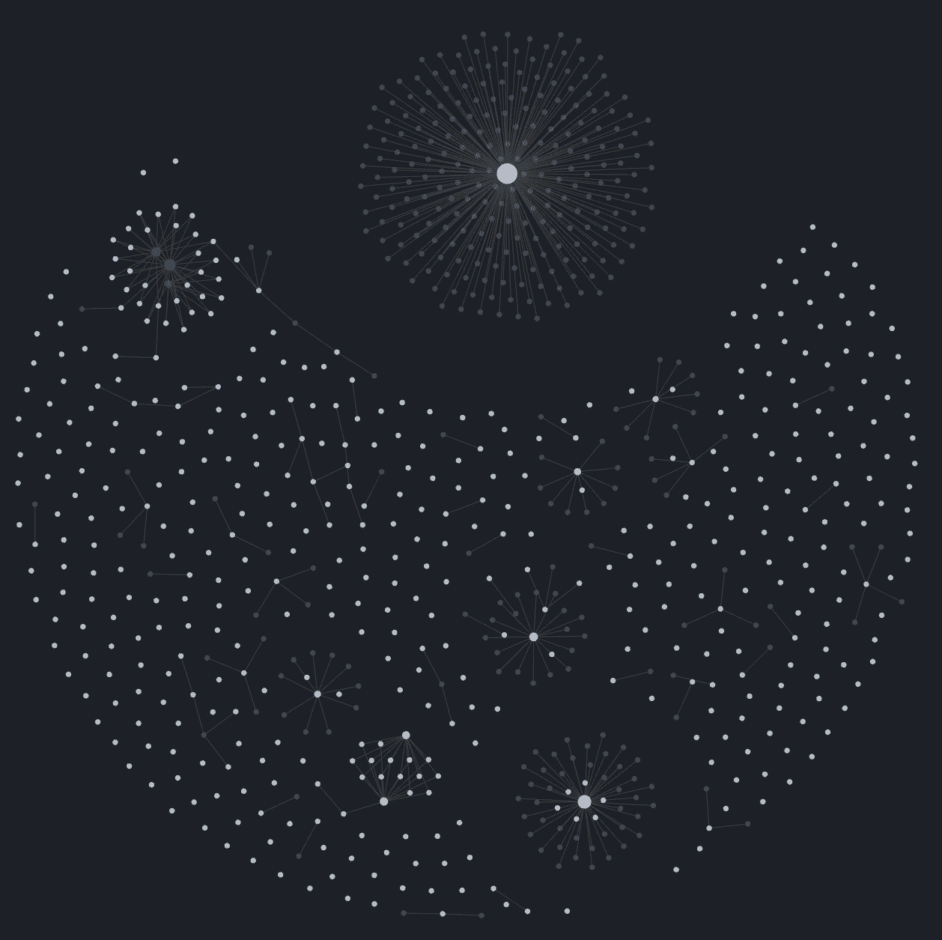
Individual ideas or thoughts on a topic form a big whole. The search works quickly and reliably and there are plenty of plugins to extend the range of functions. The Graph View shows these connections impressively and is also useful.
Although Obsidian can also search OCR and PDF content via such plugins, this is no longer necessary in my workflow. This part is taken over by the open source document management system Paperless NGX, which runs on my home server.
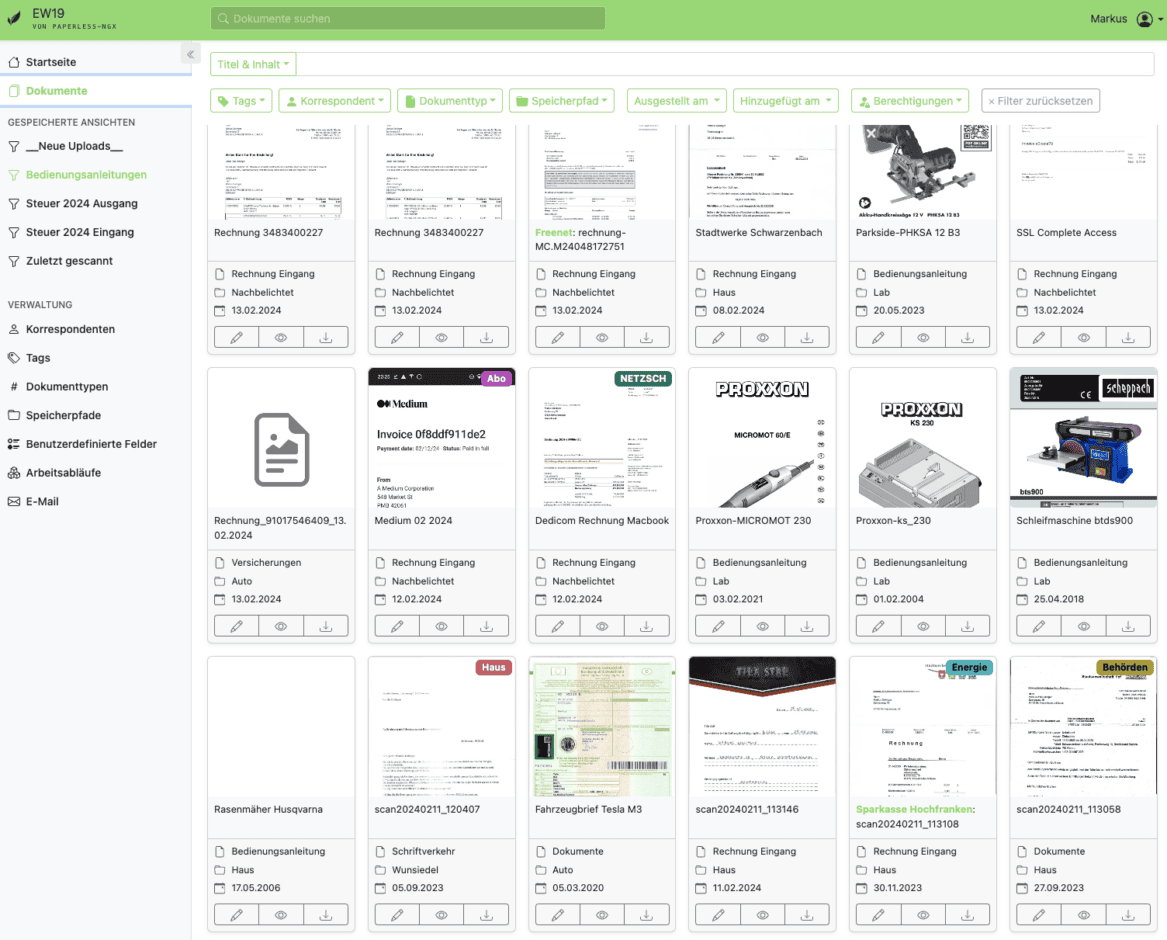
I have rarely tested an application that has impressed me so much. Paperless NGX simply works. It can monitor folders into which you simply throw PDFs, scans and images and Paperless NGX imports them automatically.
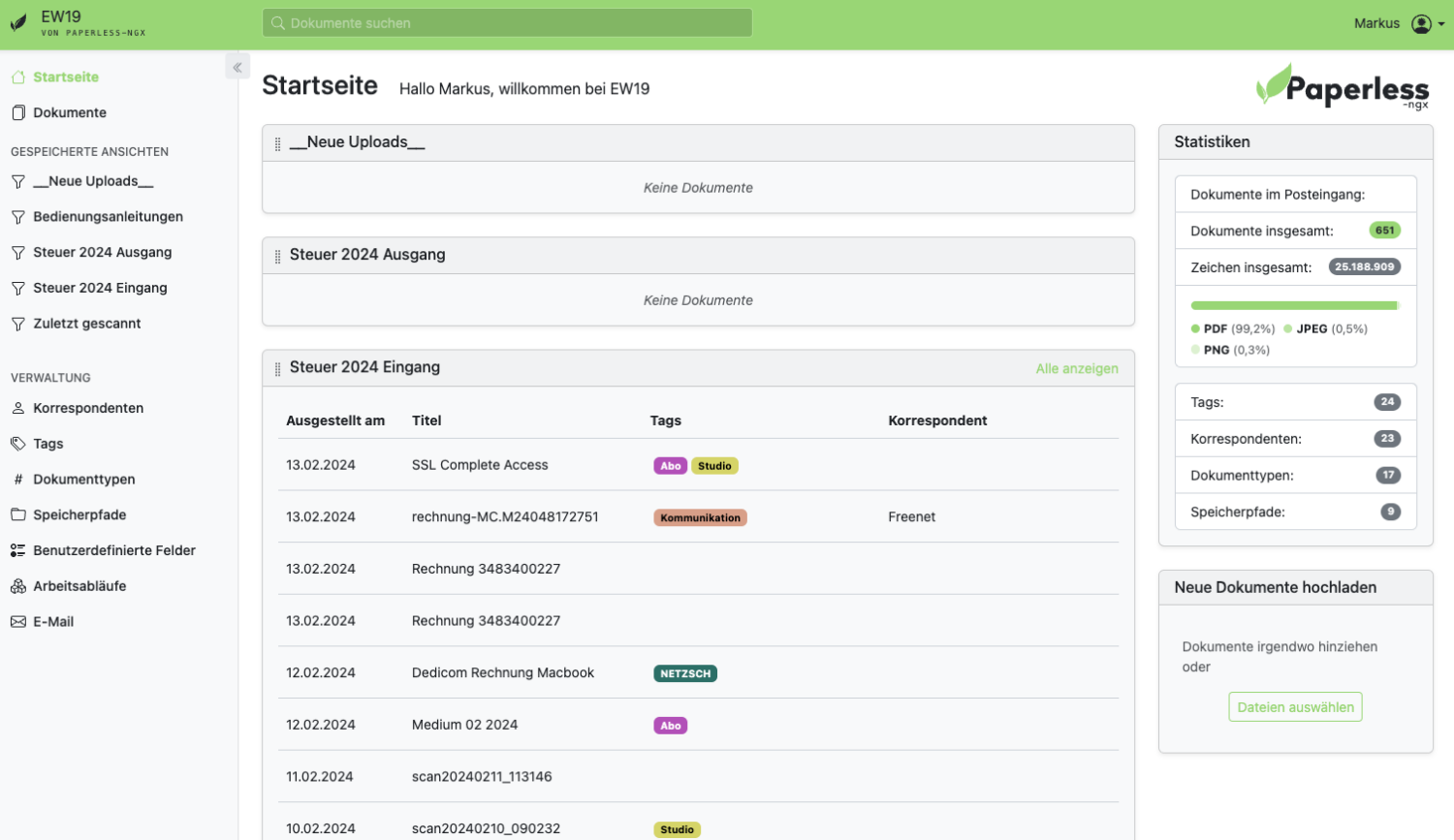
The Paperless algorithm quickly learns which documents are involved and can automatically sort them into suitable folders and categories. There is also an automatic email import function that recognises emails with attachments and also imports them automatically according to various rules.
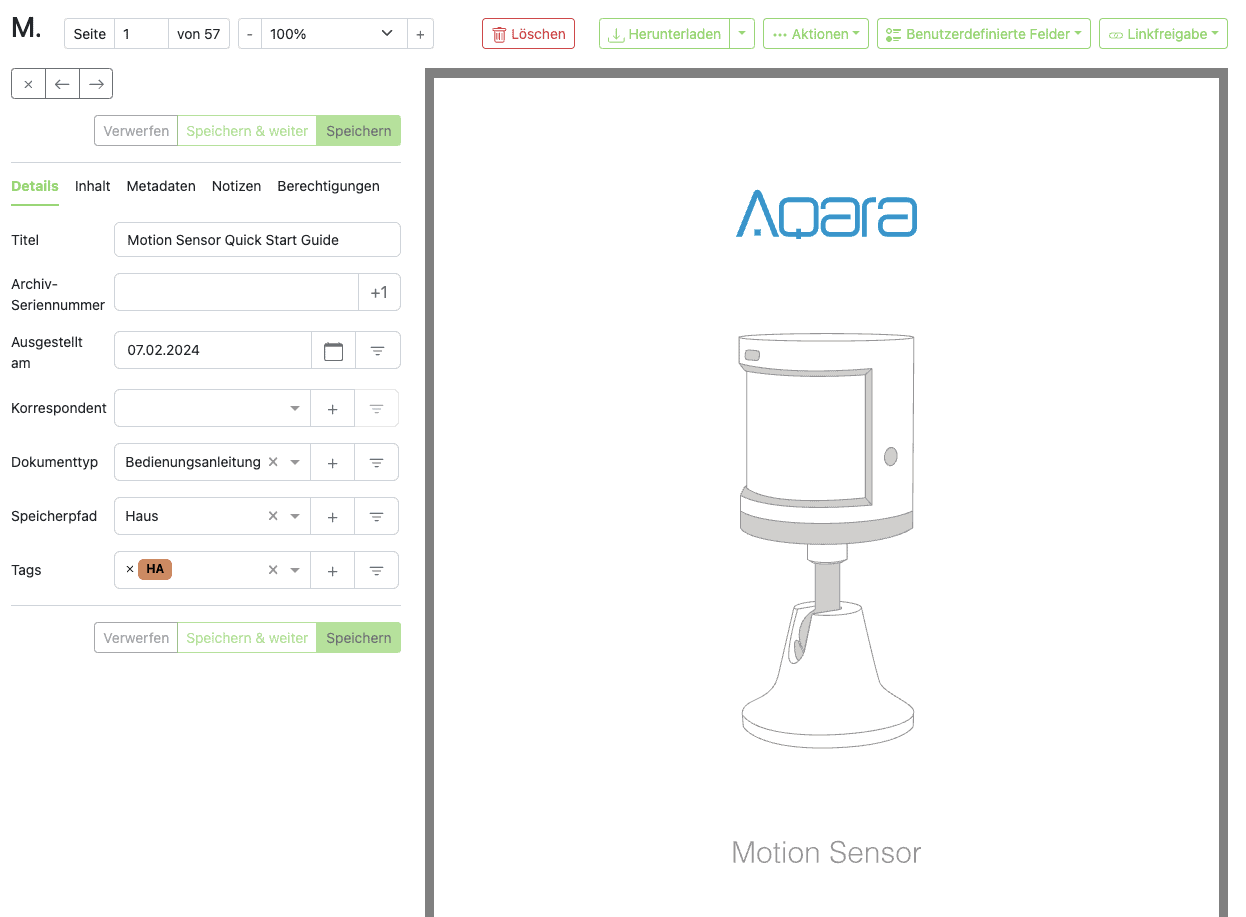
Paperless’ OCR works brilliantly – so well that I have now captured over 1000 invoices, contracts, operating instructions and other documents.
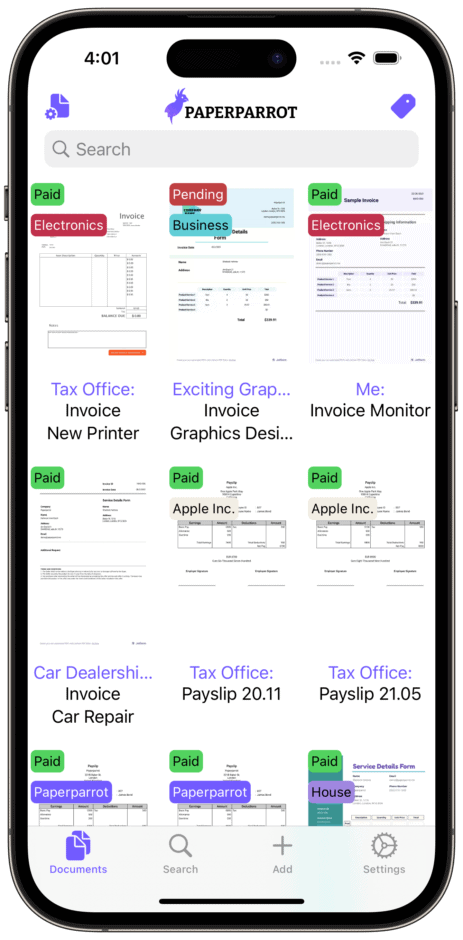
There are several apps for Android and iOS that allow you to access your content and scan documents on the go. On Android, I use the free Paperless Mobile. On my iPad, I use Paperparrot, which is very affordable at €4.99. Paperparrot can also be used under macOS.
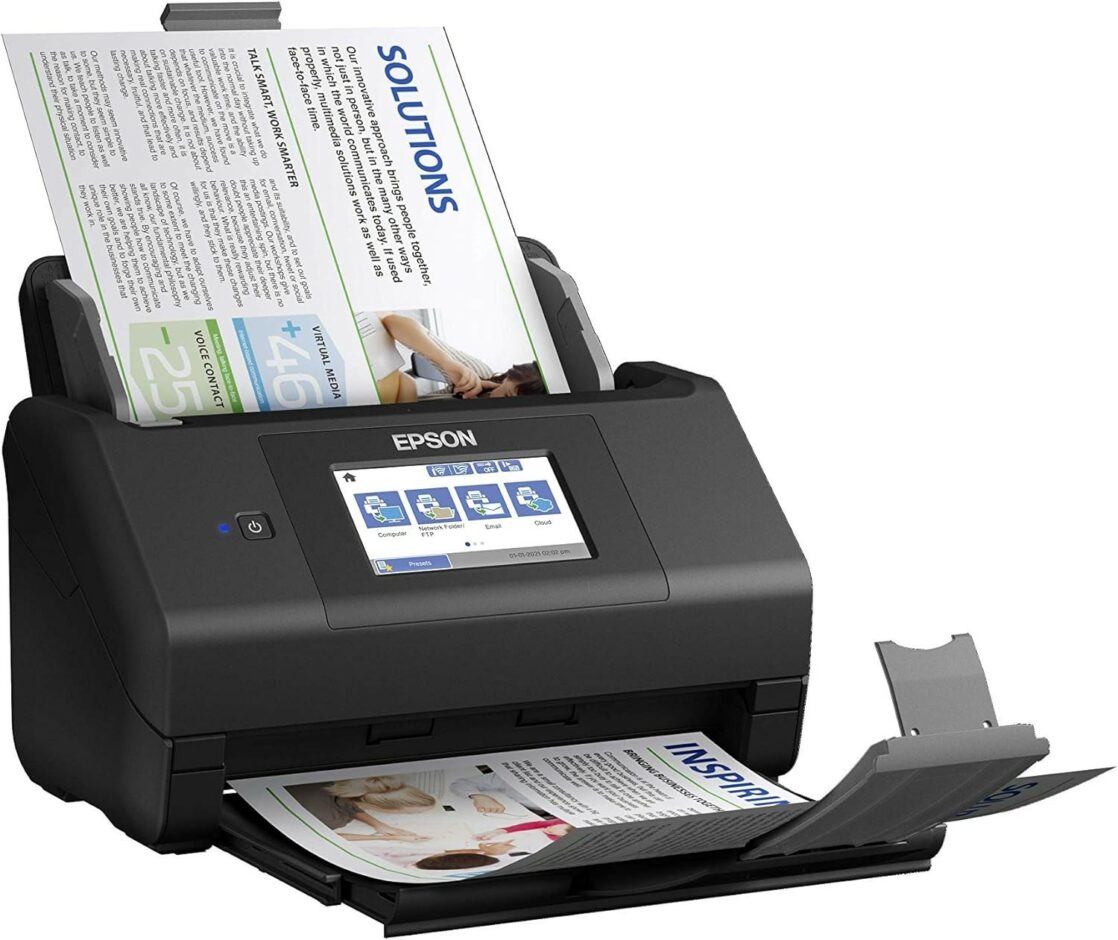
Paperless NGX is so convincing for me that I immediately treated myself to an Epson ES-580W feed scanner, which scans directly via WLAN in Paperless. At 35 pages per minute, even large volumes of documents are captured quickly and reliably. It even eats long receipts without any problems and without any additional settings. No more folders. The insurance contract is found in seconds and linked as a todo in Obsidian.
I didn’t like recording and managing bookmarks in Evernote, OneNote etc. because it was too confusing for me. When I did, I liked to use the web clippers to capture content. The Evernote web clipper was always my benchmark here, as it worked really well. Otherwise, I managed my bookmarks with Pocket.
With Obsidian, I have now found the free Omnivore to be a really excellent solution. Omnivore not only records the URL of the page, but also saves the complete content. This means that the content of pages that are no longer accessible is also saved. It also supports PDFs including full-text search. Omnivore is also a reader for the saved content and more. Incidentally, content from Pocket can be imported to Omnivore via the standard integration.
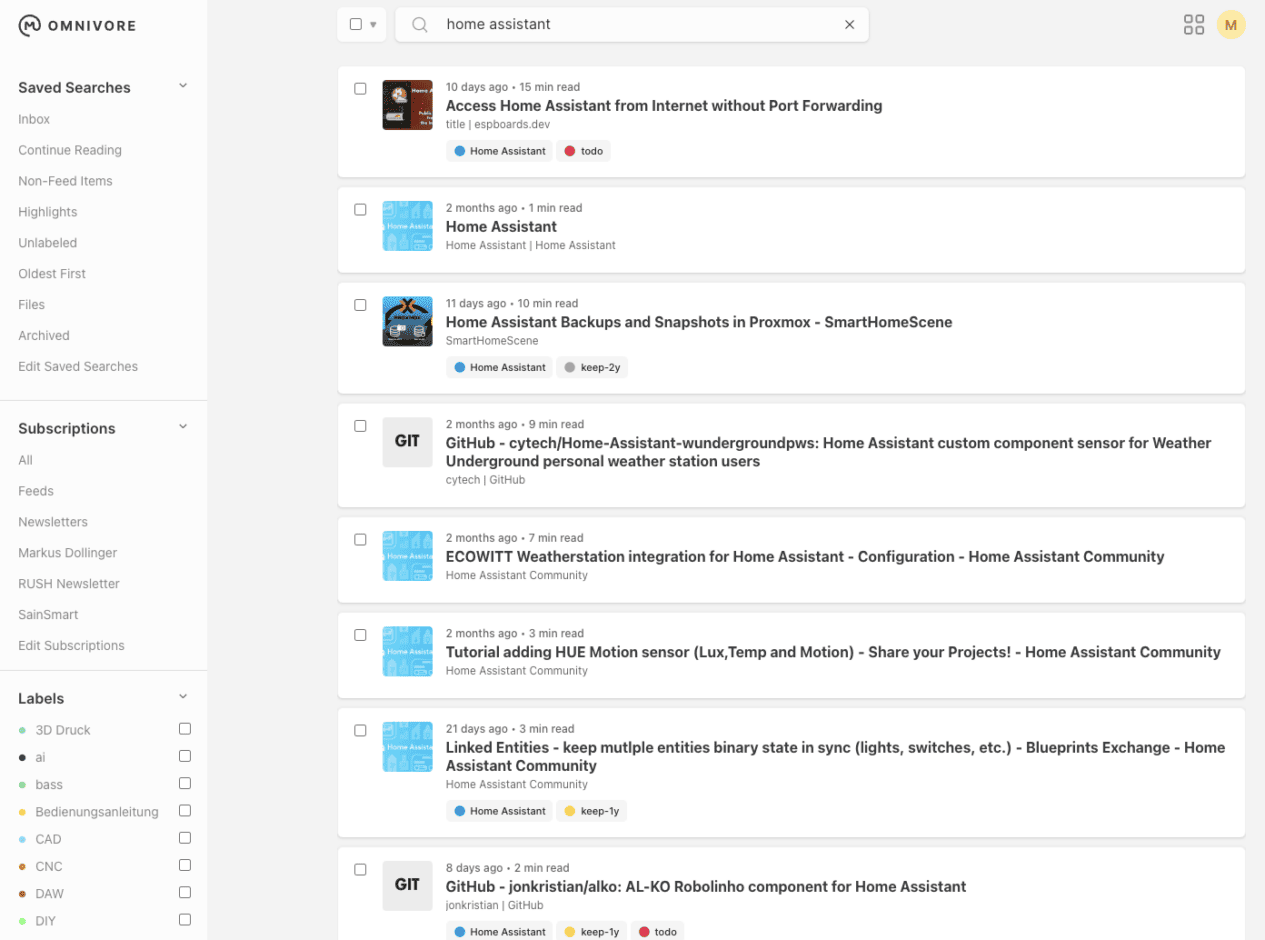
Omnivore can receive newsletters and subscribe to RSS feeds. With the Omnivore plugin, content from Omnivore can be automatically imported into Obsidian. As soon as a piece of content in Omnivore has the tag “keep”, it is imported into Omnivore. However, I have introduced several tags such as “keep-1w”, “keep-6m” etc. If a piece of content has the tag “keep”, it is kept forever and automatically imported into Obsidian. If, on the other hand, it has the tag “keep-6m”, this means that I can view it after 6 months and delete it if necessary.
The Omnivore extension for the browser captures the page and you can also assign suitable tags and add notes:

The most powerful tool in Obsidian helps with this: Dataview. With Dataview, you can build queries in Obsidian where there are practically no limits.
In my daily journal, Dataview shows me which pages I have created in Obsidian that day, which Omnivore bookmarks have been imported or which pages I have changed. Suddenly, managing to-dos in a note management system also makes sense.
Dataviews collect to-dos from all pages in Obsidian in one place – grouped by topic and importance. For example, I have a “Server” page in Obsidian where I enter everything I have done and need to do on my home server. The same applies to my CNC project, home assistant or my tasks at work.
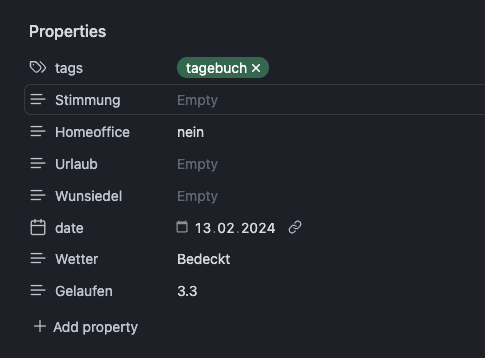
With Frontmatter, you can store metadata in notes. This is particularly interesting for templates. In my diary template, for example, I have the metadata weather, mood, kilometres walked, etc. as metadata in the header of the file. This metadata can then be searched again, automatically linked etc. etc.
Paperless NGX gives me links to the content that I can easily insert into Obsidian. Thanks to the browser built into Paperless, I can call up the content from Paperless directly.
Costs and synchronisation
Obsidian is basically free for personal use. If you use it for commercial purposes in a company with more than 2 employees, the licence costs $50 per year and user. Freelancers, solo freelancers etc. can therefore use it free of charge.
Obsidian can be synchronised in several ways. As the contents of Obsidian are Markdown text files in folders and no proprietary format or database is used, they can also be easily copied.
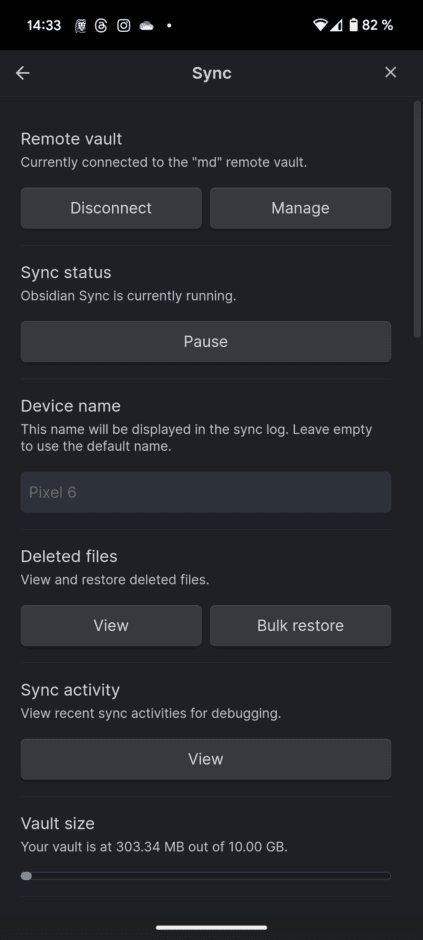
Obsidian itself offers a sync service that works very reliably and simply across all platforms, but costs $8 per month and 10 GB of storage space (total). However, this also supports the development of Obsidian. The 10 GB doesn’t sound like much at first. However, if, like me, you don’t save any PDFs and only a few screenshots etc. in it, this storage space will probably last almost forever. In addition, there are always promotions where you can get 50 GB.
Free of charge in the Apple universe via iCloud. If, like me, you use Obsidian on Windows, macOS, iOS and Android, you can synchronise it on all devices using the Remotely Save plugin, which uses Dropbox, OneDrive, S3 or WebDAV. This has worked relatively well for me, although not always without errors.
If you don’t use iOS, Syncthing works perfectly, which is indispensable for me anyway. As mentioned before, you only need to synchronise folders. You can also use GitHub for synchronisation.
I use the “official” way from Obsidian. The benefits of Obsidian are so great for me that I don’t care about the few euros. Omnivore is free. Paperless NGX too.
Personal knowledge management with addictive potential
Over the past few weeks, I have often shouted “Molloch!” when I have been working with Obsidian – and I have done so almost every day since the turn of the year. I mean “Molloch” in a very positive way because the possibilities that Obsidian offers are simply incredible.
With Excalidraw, you have a drawing tool for free drawing, mind maps, flowcharts, mockups for apps and websites and more directly in Obsidian. ChatGPT can be integrated via the API and is therefore cheaper than the ChatGPT subscription, as it is billed according to actual usage, which in my case is only a few euros per month.
DeepL and the spell checker Language-Tool can also be used in Obsidian via API. There is an audio recorder for voice notes or music ideas. With Whisper from OpenAI, the audio notes can be automatically transcribed and transferred to Obsidian as text ($0.006 per minute). It’s free with Swiftink.io.
I already had my e-books on my home server in Calibre-Web anyway and of course there is also an Obsidian plugin for this, with which you can synchronise annotations and highlights to Obsidian. Yes, and then of course there is also an Obsidian plugin to bring content from there to the Kindle or annotations from there to Obsidian. Citations and footnotes can be managed and linked with Zotero.
I’ve only just started using Canvas. It is a very helpful function for collecting and visualising ideas and content in order to generate one or more Obsidian documents.
Even if I wanted to, I could not present all of the features of Obsidian here because the possibilities are so extensive and the system is so flexible. I wrote this article in Obsidian because I had all my notes in it. Obsidian’s tab function allows you to display several pages side by side – including the browser. Once you have finished the draft, you can send the content directly to the WordPress blog using the WordPress plugin and finalise it there.
My use of Obsidian, Omnivore and Paperless NGX may not be the right solution for every user. Many people are still looking for a one-size-fits-all solution, which in my opinion does not exist. At least not if you also want a decent document management system (DMS) with OCR and full text search. For me, however, this combination is perfect and has supported me every day for almost 8 weeks. Whether blog posts, music ideas, shopping lists, to-dos, diaries, instructions and so on – everything now takes place in Obsidian and the docked applications. Obsidian saves me a lot of time and no thought is lost. In the car, I dictate my thoughts as an audio file and have them transcribed later.
Another big advantage is that the contents of Obsidian are pure text documents and can also be read with a simple text editor. This means that they can also be indexed and found by Spotlight on the Mac.
Paperless NGX stores its data in a JSON file. All documents are not stored in a database BLOB, but simply in the file system (with a hash as a checksum). Backups of both can be created very easily.
However, I will go into all the functions that I use and publish regular posts about Obsidian.
Obsidian is not a simple note-taking app. You enter a complete universe of connected functions and applications. You can configure it to be as simple or complex as you need or want it to be.
Personal knowledge management. Second brain. Slip box. Call it what you like. It’s just incredibly useful.

Leave a Reply